
How to Audit Your Keyword Stack With Free SEO Tools
Learn how to audit your keyword stack with free SEO tools. Use Google Search Console to find gaps, fix cannibalization, and prioritize underperforming terms.

Use Google Search Console, Keyword Planner, and a simple decision framework to clean up keyword cannibalization and find hidden ranking opportunities in under 20 minutes.
A messy keyword stack quietly drains search visibility. When multiple pages compete for the same terms, Google splits ranking signals and none of them win. This walkthrough shows you how to run a focused keyword audit using only free seo tools keyword search capabilities, ending with a clean, prioritized list of keep, merge, and kill decisions.
Before You Begin
This guide is built for marketing leaders, agency operators, and founders who manage active content programs. You will audit an existing keyword list or site, not build one from scratch. The scope covers discovery, overlap detection, opportunity scoring, and action assignment. Out of scope: technical SEO fixes, backlink analysis, and paid search optimization.
You need verified access to Google Search Console for the target property, a free Google Ads account to access Keyword Planner, and a spreadsheet. Set aside 20 minutes for the first pass. Intermediate familiarity with SEO terminology helps, though the steps are explicit enough for motivated beginners.
The prerequisite most people skip: confirming your GSC property covers the exact URL variant (www vs. non-www, https) that ranks in search results. Mismatched properties return incomplete data and lead to false negatives. If your site redirects www to non-www but your GSC property only tracks www, you will miss substantial query data. Verify this by checking which version appears when you search site:yourdomain.com in an incognito window, then match your property accordingly.
Success Checks
- Every tracked keyword maps to exactly one primary URL with no internal competition
- You have a shortlist of 5-10 underoptimized terms with clear next actions
- Zero "zombie" keywords remain — terms ranking past position 30 with no strategic value
- Your final spreadsheet contains volume, current position, and assigned action for each term
Step 1: Export Your Current Keyword Universe
Starting with incomplete data guarantees blind spots. Google Search Console holds the only free, property-specific ranking data you can trust for this task, and most teams underuse its export features. The Performance report captures every query where your site appeared, including terms you never intentionally targeted. This is where hidden opportunities and accidental cannibalization live.
- Open Google Search Console and select your verified property
- Navigate to Performance > Search results
- Set the date range to the last 16 months for sufficient sample size
- Click the Export button in the top-right corner and choose Google Sheets or download as CSV
- If the dataset exceeds 50,000 rows, export by page category or date segment to avoid truncation
Expected result: A spreadsheet with Query, Clicks, Impressions, CTR, and Position columns for every search term that triggered your site in the selected period.
Verify: Open the export and confirm the Query column contains at least 1,000 unique terms for established sites or 100+ for newer properties. Fewer rows suggest a date range or property mismatch. Also check that the Position column averages between 15 and 35 for most terms — a cluster entirely below position 40 may indicate a tracking error or a site with severe visibility problems.
Common Pitfall: Exporting only the default 1,000 rows visible in the GSC interface. The full dataset often contains 10,000+ terms. Always use the export function, not copy-paste from the table view. Another frequent error: exporting with the "Average position" filter active, which hides valuable data from pages that rank intermittently.
Step 2: Load and Structure Your Data for Analysis
Raw GSC exports are noisy. Queries include brand terms, misspellings, and one-off anomalies that obscure real patterns. A clean structure lets you spot cannibalization and opportunity without manual scanning. The time invested here determines how fast your later decisions come.
- Import your export into a new spreadsheet with headers: Keyword, Clicks, Impressions, CTR, Position
- Create a new column labeled Action with dropdown options: Keep, Merge, Kill, Investigate
- Add a second new column labeled Primary URL and leave it blank for now
- Add a third column labeled Volume and a fourth labeled Trend for data you will import later
- Filter out brand terms and navigational queries (your company name, "login," "pricing," etc.)
Expected result: A filtered dataset of non-brand keywords with assigned action statuses ready for scoring.
Verify: Scroll through the Keyword column and confirm no obvious brand terms remain. Spot-check 20 random rows. Also confirm your Impressions column has no negative values or text errors, which occasionally appear in large exports due to formatting glitches.
Common Pitfall: Over-filtering and removing valuable long-tail variants. Keep terms that contain your brand only if they represent genuine informational intent, such as "[brand] vs [competitor]" or "[brand] alternatives." Another trap: filtering out low-impression terms before analysis. A query with 50 impressions and position 11 may be one content update away from significant traffic.
Step 3: Identify Cannibalization and Overlap Patterns
One keyword, multiple URLs: this is the silent killer of ranking potential. Google cannot determine which page deserves priority, so engagement metrics dilute across competitors on your own domain. The result is often two pages stuck at positions 14 and 16 instead of one page at position 6.
- Sort your dataset by Keyword alphabetically
- Scan for identical or near-identical terms appearing in multiple rows with different landing pages
- For each duplicate cluster, note all competing URLs in the Primary URL column
- Flag the cluster with Merge in your Action column
- Add a note in a Comments column describing why you suspect cannibalization
Expected result: A highlighted list of keyword clusters where two or more URLs compete for the same search intent.
Verify: Pick three flagged keywords and manually search them on Google with site:yourdomain.com [keyword]. Multiple results from your site confirm true cannibalization. If only one result appears, the GSC data may reflect temporary fluctuations or URL parameter variations that resolve to a single canonical page.
Common Pitfall: Confusing similar keywords with identical intent. "Project management software" and "project management tools" may warrant separate pages if the SERP shows different content types ranking for each. Check the actual search results before merging. Another error: assuming cannibalization only happens with exact keyword matches. Semantic overlap — where two pages target the same topic with different phrasing — is harder to detect but equally damaging. Read the page titles and meta descriptions of competing URLs to assess true topical overlap.
Step 4: Score Opportunity Using Search Volume and Difficulty
Not all keywords deserve equal attention. You need external volume and competition data to separate high-potential terms from maintenance-level entries. Google's Keyword Planner provides this at no cost, though with ranges rather than exact figures. For organic SEO, these ranges are directional but sufficient for prioritization.
- Open Google Ads and navigate to Tools > Planning > Keyword Planner
- Select Discover new keywords and paste your filtered keyword list in batches of 1,000 or fewer
- Set location to your target market and language to English
- Export the results and match Volume and Competition columns back to your main spreadsheet using VLOOKUP or equivalent
- For terms where Keyword Planner shows no data, check Google Trends for relative interest patterns
Expected result: Every keyword now shows estimated monthly searches and competition level alongside your actual performance data.
Verify: Confirm that high-impression, low-click terms in your GSC data correspond to meaningful search volume in Keyword Planner. Mismatches often reveal ranking-position problems worth investigating. Also spot-check five terms manually in an incognito search window to confirm the SERP features match your expectations — a keyword with high volume but dominated by featured snippets requires different tactics than one with standard blue links.
Common Pitfall: Trusting Keyword Planner's "Low," "Medium," "High" competition labels for organic SEO. These reflect paid search competition, not organic difficulty. Use them as weak signals only; prioritize your own ranking position and SERP features observed manually. Another error: ignoring seasonal terms. A keyword with 10,000 monthly searches in December and 200 in June still deserves attention if your business benefits from that seasonal peak. Check the full year trend, not just the current month.
Step 5: Apply the Keep, Merge, Kill Decision Framework
Data without decisions creates paralysis. A forced-choice framework cuts through ambiguity and produces an actionable output in minutes, not hours. The key is applying rules in strict order so emotional attachment to specific pages does not override performance logic.
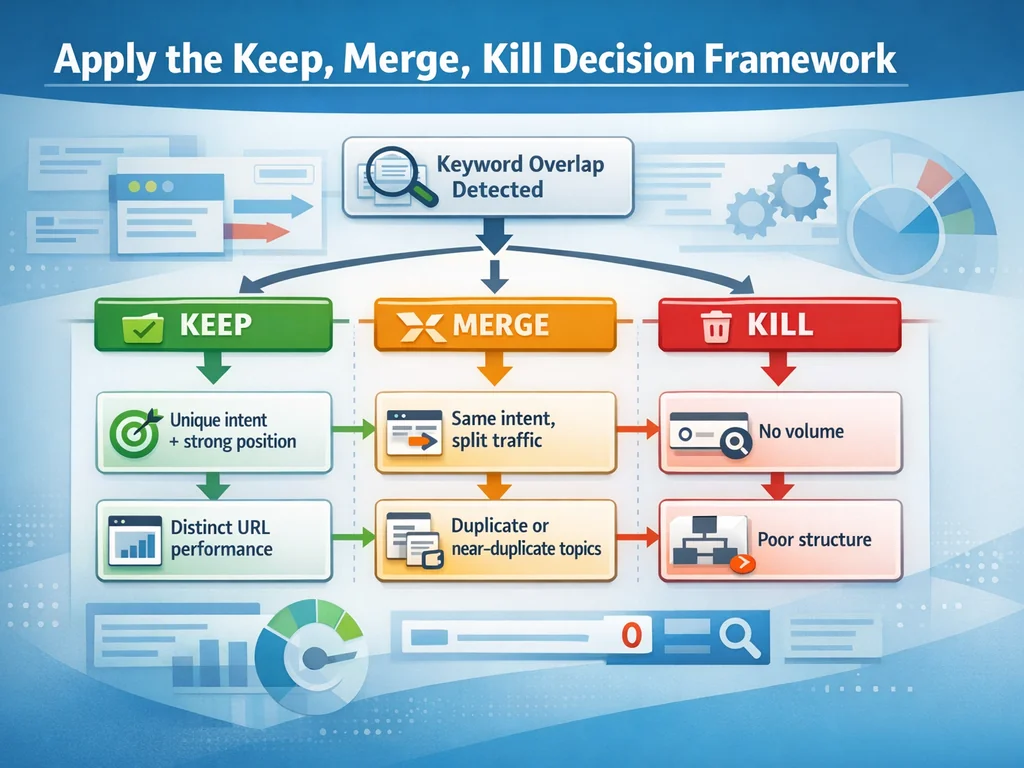
For each keyword, apply these rules in order:
- Keep: Current position 1-15, stable or improving CTR, clear primary URL with no cannibalization, and confirmed search volume above zero
- Merge: Multiple URLs competing, or the term overlaps so closely with another keyword that one stronger page could serve both intents
- Kill: Position 30+, fewer than 10 clicks over 16 months, no strategic value to your business, or the term drives traffic to a page you plan to deprecate
- Investigate: Inconsistent data, sudden position drops, terms where you suspect SERP feature disruption, or keywords with high impressions but zero clicks that might indicate a title tag or meta description problem
When in doubt between Keep and Investigate, default to Investigate. False positives here cost less than missed problems.
Expected result: Every keyword carries exactly one action label with documented reasoning.
Verify: Count your distribution. A healthy audit typically yields 40-60% Keep, 10-20% Merge, 15-25% Kill, and 10-15% Investigate. Severe skew toward any category suggests filtering or scoring errors. If your Kill rate exceeds 35%, reconsider whether you filtered out too many long-tail variants or set the position threshold too aggressively.
Common Pitfall: Killing keywords too aggressively because of low absolute clicks. A term with 5 clicks but position 8 and rising impressions may be a breakout candidate. Check trend direction, not just totals. Another trap: keeping keywords purely because they rank well for ego terms with no business value. A position 3 ranking for an irrelevant query wastes crawl budget and distracts from meaningful optimization.
Step 6: Assign Primary URLs and Document Merge Plans
Decisions without owners become orphans. Every Keep and Merge keyword needs a single canonical page responsible for its performance. This step transforms your audit from analysis into operations. Without it, your spreadsheet becomes another forgotten document in a shared drive.
- For every Keep keyword, enter the best-performing URL in Primary URL
- For every Merge cluster, choose the stronger URL based on backlinks, content freshness, conversion history, and current engagement metrics
- In a separate notes column, draft the merge action: redirect secondary URL to primary, consolidate content, update internal links, or refresh the primary page to incorporate secondary content
- For Kill keywords, note whether to 301 redirect, 404, or leave as-is with noindex — the choice depends on whether the page has external backlinks or referral traffic worth preserving
- Set a due date column for every Merge and Kill action, targeting completion within 30 days
Expected result: A complete action register with responsible URLs, specific technical next steps, and deadlines for merges and kills.
Verify: Pick five Merge keywords and confirm the chosen primary URL actually covers the topic. A mismatch here creates a new problem worse than the original cannibalization. Also check that every Kill keyword with external backlinks has a 301 redirect plan, not a 404, to preserve link equity.
Common Pitfall: Choosing the older URL as primary by default. Google often prefers fresher content. Compare publication dates, recent update history, and current engagement metrics before deciding. Another error: planning merges without accounting for internal links. A page with 40 internal links pointing to it should generally be the redirect target, not the source, to minimize broken navigation and maintenance overhead.
Troubleshooting: Common Mistakes and Fixes
GSC export shows zero queries for a known-ranking page. Verify the property includes the exact protocol and subdomain. Check the page-level filter in GSC to confirm the URL appears in the index. If excluded, inspect the URL directly in GSC for coverage issues. Also confirm the page is not blocked by robots.txt or carrying a noindex tag that was recently added.
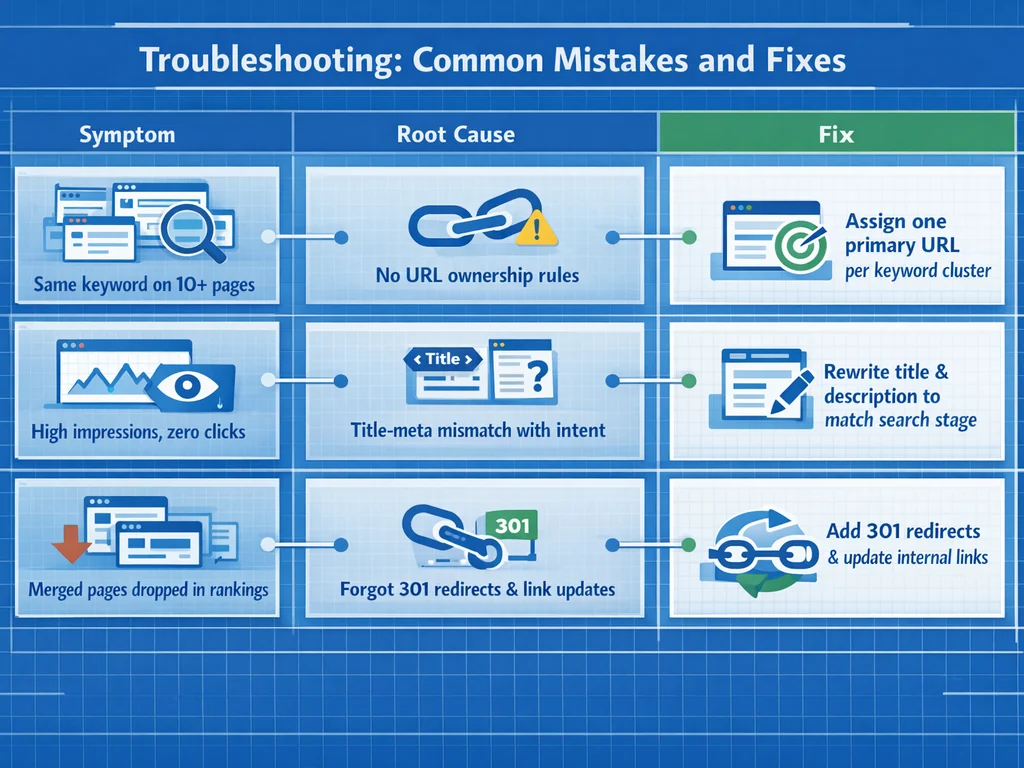
Keyword Planner returns "0-10" volume for obvious terms. This range means low volume, but the tool clusters close variants. Search the term in an incognito window and check Google's autocomplete suggestions. Related queries with higher volume may reveal the true demand. Consider supplementing with Google Trends for relative interest comparison.
Merge candidates have genuinely different intent. When two similar keywords serve different searcher goals, splitting them is correct. Check the top three ranking pages for each term. If they differ in format (product page vs. blog post vs. comparison), maintain separate URLs and refine differentiation instead of merging. Look at the SERP features too — a keyword triggering shopping results versus one triggering featured snippets indicates distinct intent.
Audit feels overwhelming with 10,000+ keywords. Start with your top 500 by impressions. This subset typically drives 80% of organic traffic. Complete the framework on this reduced set, then expand if time permits. A finished partial audit beats an abandoned comprehensive one. For enterprise sites, segment by site section or product category and run parallel audits.
Spreadsheet formulas break when merging data sources. VLOOKUP fails on partial matches and is case-sensitive in some environments. Use INDEX/MATCH for more robust matching, or import both datasets into a tool like Google BigQuery if you are comfortable with SQL. Always validate your match rate — if fewer than 85% of keywords successfully join, investigate formatting differences like trailing spaces or special characters.
Verify the Result
Return to your Success Checks and confirm each passes:
- Search three random Keep keywords with
site:yourdomain.com. Only one result should appear per term. If multiple surface, revisit Step 3 and refine your cannibalization detection. - Open your Investigate list. Each entry should have a specific question or data gap noted, not vague uncertainty. If not, downgrade to Keep or Kill based on available evidence.
- Review your Kill list. Confirm no term has rising impressions or position improvements in the last three months. Trends change; do not delete momentum. Check the last 28 days in GSC separately from your 16-month view.
- Check your Merge list against your content calendar. Every merge should have a scheduled completion date within 30 days. Unscheduled merges rarely happen. If your calendar is full, prioritize merges involving your highest-traffic pages.
- Validate that every keyword in your final spreadsheet has a non-empty Action, Primary URL, and due date or status note. Empty cells indicate incomplete analysis.
If any check fails, return to the corresponding step and refine. A passing audit is only as reliable as its verification. Document which checks failed and why — this log becomes valuable context for your next monthly or quarterly audit cycle.
How SiaSEO Helps
Manual keyword audits demand discipline that scales poorly across multiple clients or large content programs. SiaSEO automates the stack analysis by ingesting your site URL, mapping existing content against live ranking data, and surfacing cannibalization patterns without spreadsheet gymnastics. The platform generates a prioritized content calendar in under five minutes, flagging which pages to keep, merge, or refresh based on current SERP position and semantic drift.
For teams running regular audits, SiaSEO's quality scoring tracks whether merged or updated pages maintain topical coherence over time. This prevents the common post-audit decay where cleaned stacks gradually re-tangle as new content ships without keyword guardrails. The semantic drift detection specifically catches when a page that was optimized for one topic gradually shifts to compete with another page on your site — a problem manual audits typically miss until rankings drop.
Agency operators managing 10+ client sites can use the bulk site analysis to run equivalent audits across properties simultaneously, receiving normalized reports that compare cannibalization severity and opportunity size across the portfolio. This turns a per-site chore into a scalable service offering.
Next Steps
Schedule this audit monthly for active content programs, quarterly for stable sites. Between audits, monitor your Investigate list weekly for position shifts that change action labels. Set a recurring calendar reminder to export fresh GSC data and update your spreadsheet — stale audits become worse than useless when they drive decisions on outdated rankings.
After your first successful pass, advance to mapping search intent templates against your cleaned keyword set. This ensures new content aligns with the informational, commercial, and transactional buckets your audit revealed. The 9 article templates search intent framework provides a ready structure for this next phase.
For teams ready to automate, consider whether your current tooling supports continuous monitoring or whether manual exports remain your bottleneck. The 20-minute timebox in this guide is achievable for small sites but becomes unsustainable at scale. Plan your tooling upgrade path before volume forces reactive rather than proactive optimization.
References
- dhs Keywording — DHS has established standards for creating and managing keyword taxonomies. , taxonomy is the science . Keywords are a subset of the web. They incorporate the that web
- SEO Starter The Basics — SEO Starter Guide: The Basics | Google Search Central | Documentation | Google for Developers # Search Engine Optimization (SEO) Starter Guide The Search Essentials outline the
- Advanced search engine optimization — Advanced search engine optimization | Digital.gov Website structure and content impact search engines’ ability to provide a good search experience. That’s why it is so important