
Google Activity Controls: How to Stop Privacy Settings From Killing SEO Data
Stop Google from withholding the data your SEO strategy depends on. Audit these Activity Controls before your keyword research goes blind.

By the time Javier checked the agency’s Search Console dashboard, 68% of the queries had collapsed into “(not provided).” He had not changed a tracking tag, yet three Google Ads remarketing audiences had dipped below 100 users and the GA4 attribution model was quietly handing more credit to Direct. The culprit was a cluster of toggles inside his Google Account privacy settings Activity Controls — the switches at myaccount.google.com that decide how much behavioral data Google feeds back into your marketing tools. One colleague had clicked through the Privacy Checkup three days earlier.
Between mid‑2025 and June 2026 Google rebuilt the panel: it split the old Web & App Activity bucket, introduced a new Search Services History entity that auto‑enrolls users into multimedia data retention, and began blast‑emailing account holders about the changes. Each switch carries a tax on your SEO signal pipeline, and missing a single toggle can take weeks to troubleshoot. This walkthrough maps every 2026‑state Activity Control to the reporting data that goes dark when the switch moves to “off,” gives you a precise sequence for the audit, and ends with a documented configuration that keeps your team from retracing the same phantom data gaps twice.
The Data That Vanishes When a Control Moves to Off
Google labels each toggle in consumer‑benefit language — “faster searches,” “personalized recommendations” — so the downstream damage is invisible on the page. If you operate with one Google Account for everything, the cost is steeper because a single privacy move wipes out data across Search Console, Google Ads, and GA4 simultaneously.
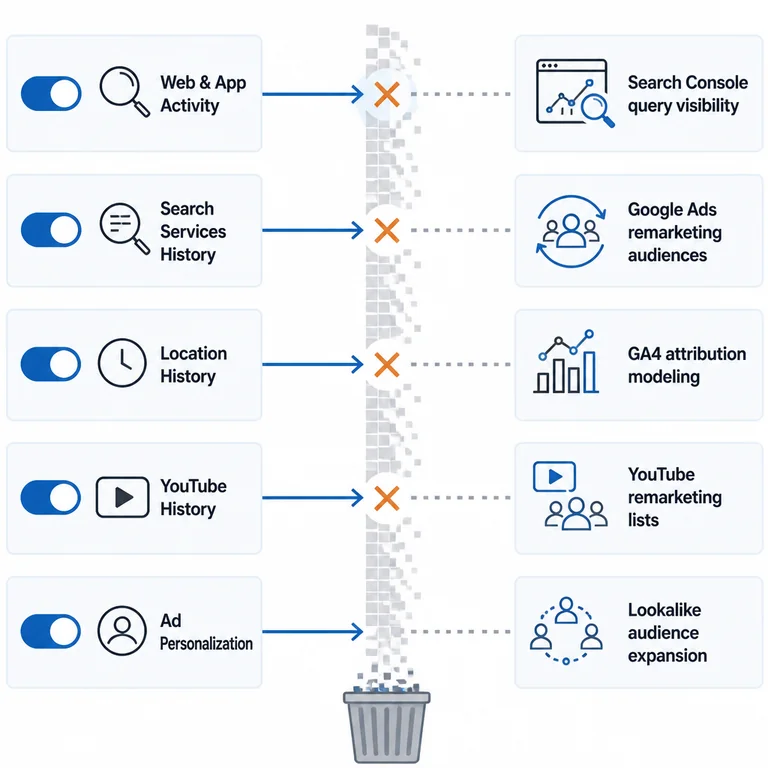
Web & App Activity is the master switch for signed‑in search and browser history. When it is on, Google saves your queries, the URLs you click from results, and in‑app actions on Android. That saved activity feeds two business‑critical pipelines. First, it fills Search Console’s Performance report with query data that would otherwise collapse into the generic “(not provided)” row. Second, it builds Google Ads remarketing lists — audiences like “All Visitors” and “All Converters” that rely on Google‑observed site behavior. Turn the toggle off and those pools shrink, while your Search Console query visibility plunges. The numbers are not hypothetical: a SaaS marketing director tracked a remarketing list drop from 38,000 to 3,200 in six weeks after a single privacy review session, but the delay between the toggle change and the visible reporting impact meant the team blamed a tag migration for two weeks before tracing the root cause back to this one switch.
Search Services History (new as of June 10, 2026) governs multimedia interactions: Lens images, Search Live audio recordings, voice queries, and spoken phrases fed into Google Translate. Google now stores this content under a distinct toggle and explicitly says it may use the data for “developing and improving its services,” including AI models. For most B2B SEO operations the direct reporting impact is small today — no public pipeline surfaces Lens‑specific query volume in Search Console — but the precedent matters. Google is creating separate consent boundaries that could later gate whether AI Overviews or voice‑search data become available to third‑party analytics.
Location History contributes store‑visit attribution, local search impressions, and “near me” query performance inside Google Ads. Agencies that manage multi‑location business profiles often tie this data to GMB insights. For purely online brands it is irrelevant; your organic national reporting does not touch it.
YouTube History underpins two things for a paid media team: video remarketing audiences and the “YouTube” source/medium segment in GA4. Many operators overlook this toggle because video is a separate content operation, yet when it is off, video remarketing stops growing and GA4 attributes fewer assisted conversions to YouTube ad clicks.
Ad personalization (My Ad Center) determines whether your saved activity contributes to the interest models that power lookalike audiences and campaign match rates. Turning it off on the account that manages Google Ads means the engine has less signal to expand your own audiences — a direct hit to Performance Max and Demand Gen campaigns. As Google’s own Control what data Google uses documentation states, personalized ads use saved activity to show relevant ads; that same engine fuels audience expansion, so a disabled personalization setting on a production ad account tells Google not to use your own activity data to model your ideal customer.
Navigating the 2026 History Settings Panel
Open a signed‑in Google Account and go to myaccount.google.com → Data & privacy → History settings. In mid‑2026, the interface has changed in three ways that matter for the walkthrough.
First, the Search Services History toggle now appears alongside or below the older Web & App Activity entry, depending on whether the gradual rollout has reached your account. If the toggle is not visible yet, Web & App Activity still controls everything for that account. The Control what activity gets saved help page notes that the rollout is ongoing, so any account may show one or both configurations for months.
Second, inside Web & App Activity itself, a sub‑setting labeled “Include Chrome history and activity from sites, apps, and devices that use Google services” often goes unchecked during a privacy audit. When that box is off, Chrome browsing history stops feeding the Google Account activity pipeline, and GA4 loses a reliable signal for re‑attributing Direct sessions to Organic. The drop shows up weeks later as a quiet change in the attribution paths report. GA4’s data‑driven attribution model relies on the Chrome signal to connect a known user with an earlier search session; without it, the model defaults to crediting the final direct visit.
Third, the Privacy Checkup wizard is a risk. Google promotes it as a quick settings review, but the wizard uses defaults that lean toward “off,” and many users click through without reading every toggle’s consequence. As Ars Technica pointed out in April 2026, opting out through Google’s recommended path can mean running into “dark patterns, UI elements that work against the user’s interest.” If a team member opens the Checkup on the master analytics account, the toggles you carefully set earlier can be reversed in under two minutes — and there is no destructive‑action warning when the defaults turn off Web & App Activity in the “recommended” flow.
A Toggle-by-Toggle Audit Sequence for Marketing Teams
The steps below assume you are starting from the Data & privacy → History settings screen and working on the Google Account that owns Search Console, Google Analytics, and Google Ads. If the organization uses a separate account for each tool, repeat these steps on every account that handles reporting or audience management.
1. Web & App Activity — leave on, manage the sub‑setting.
Do not turn this off globally. Instead, click into Web & App Activity, confirm the toggle shows On, and immediately check the box for “Include Chrome history and activity from sites, apps, and devices that use Google services.” If you need the Chrome‑linked attribution signals in GA4, leave it checked. Use a separate testing profile if you need to simulate a clean‑slate user for QA.
What breaks when it is off: Search Console “(not provided)” rows spike, remarketing audiences collapse, and Google Ads targeting quality degrades. Because the list population relies on signed‑in activity, even a few days with the wrong toggle can crater the list, and rebuilding to previous levels may take weeks.
2. Search Services History — off unless you rely on multimedia search insights.
If the toggle appears and you do not use Lens images, Search Live audio, or voice queries for campaign reporting, turn it off. There is no public reporting stream that surfaces Lens‑specific query volume today, so the SEO cost is zero. The benefit is that you stay out of the default AI training consent boundary created when Google launched this separate retention bucket in June 2026.
3. Location History — off for pure‑play online brands; on only if you need store‑visit attribution.
No impact on organic national reporting. If your agency manages multi‑location business profiles and the client requires store‑visit conversion tracking, leave it on and confirm that the toggle matches the GMB integration needs.
4. YouTube History — off if video is not a paid channel.
If you run YouTube Ads or video remarketing, keep YouTube History and both sub‑toggles (search history and watch history) on. Otherwise, turning it off removes a small noise source from GA4 without any meaningful downside. Many teams forget that YouTube watch history also feeds video‑action campaign audiences; losing that signal can hurt campaign efficiency even for brands that do not run dedicated video remarketing.
5. Ad personalization — on for the account that runs Google Ads.
In My Ad Center, under Personalized ads, keep the switch on for the account used to manage Google Ads campaigns. Your account’s activity contributes to the interest signals that train lookalike models, and turning it off reduces the pool Google uses to expand your own audiences. For rank‑checking and SERP testing, use a separate incognito profile rather than disabling personalization on the production account.
Confirmation Checks: Is Your Data Flowing Again?
Wait at least 48 hours after adjusting the toggles, because Google processes activity data in batches. Then run these three checks.
Search Console query report. Go to Performance → Queries, set a 7‑day date range, and look at the proportion of “(not provided)” rows. For a site with moderate traffic, that figure should settle around 15–25%. If it stays above 50%, Web & App Activity is likely off on the connected account, or a network‑level proxy is masking the search referrer. A persistent spike above 40% almost always traces back to this toggle being off, a workspace policy override, or a browser‑level privacy setting that blocks Google cookies on the account’s default browser.
Google Ads remarketing lists. Open Audience Manager and check the size of a remarketing list that depends on Google‑observed behavior (e.g., “All visitors”) over the last 30 days. A drop of more than 40% without any tag changes almost always means Web & App Activity or the Chrome sub‑setting is off on the account the Google Ads tag uses.
GA4 attribution paths. In GA4, go to Reports → Advertising → Attribution paths and look for a shift in credit from Organic to Direct while total conversions stay stable. That pattern suggests the Chrome history signal that helps GA4 reattribute Direct traffic has disappeared. The cause may be the Chrome sub‑setting, browser‑level cookie blocking, or a Workspace policy — rule out each before assuming a tag failure.
If any check fails, the fastest way to isolate the problem is to log the toggle state of the master analytics account now and compare it against the last known working snapshot. Without that snapshot, you may spend days debating whether a setting was always off or got flipped last Tuesday.
Five Pitfalls That Erase Months of Attribution Data
Most teams don’t intentionally break their data. They stumble into one of these recurring patterns.
One account does everything. When you turn off Web & App Activity for privacy while signed into the same account that owns Search Console and Google Ads, you kill the pipeline for every connected property. Use separate accounts for personal privacy hygiene and for marketing data — it is the only clean separation.
A teammate runs Privacy Checkup on the master account. The wizard’s defaults reverse earlier toggles. As Google’s Find, control & delete the info help page confirms, the Checkup walks users through pre‑selected recommendations that lean toward “off.” If the person does not read every toggle, your configuration disappears in seven clicks with no destructive warning.
Android device‑level overrides go unnoticed. On Android, Web & App Activity includes device‑side controls (Settings → Google → Manage your Google Account). An MDM policy that disables activity reporting on the device overrides the web console’s toggle for app signals, silently breaking app‑install campaign tracking even when the web panel says “on.” This is especially dangerous for B2B SaaS companies that have employee BYOD policies and no unified device management.
The 2026 Search Services History email triggers a blanket shutdown. The June 2026 blast email framed the new setting as “more control,” but many users turned off everything — including Web & App Activity — in a single sweep. If you noticed a sudden data gap in late June 2026, that email is the most likely trigger. Google sent it to hundreds of millions of users, and many clicked “turn all off” without understanding that the master switches were nested in the same confirmation flow.
Google Workspace admin policies block activity collection. A domain administrator can disable Web & App Activity across the entire organization for compliance reasons, and every employee’s connected Search Console and Ads data will degrade. Before chasing individual toggles, check the admin console under Apps → Additional Google services → Web & App Activity. This global override often goes undetected because it does not show up in the individual user’s settings panel — the toggle simply appears greyed out.
Locking the Configuration So Someone Else’s Privacy Moves Do Not Undo It
Once the toggles are set and you have verified the data flows, take two actions to protect the configuration.
First, document every toggle’s final state in a shared operations doc: Google Account email, date, and a screenshot of the History settings page. Share it with the paid media, analytics, and SEO leads. That baseline becomes the recovery point when someone runs the Privacy Checkup six months from now. Without a dated baseline, the team will waste hours debating which setting was changed.
Second, decouple your observation profile from your measurement profile. Use a clean incognito browser or a separate Google Account with activity controls turned off to run rank‑checking queries, see the generic SERP, and test click‑throughs. Your measurement account stays pristine; your personal browsing account can lock down privacy without affecting marketing data. If you have to choose between accurate reporting and personal privacy on a single account, you will eventually lose the data that proves your work is driving results.
Learn more →
Review SiaSEO as the operating system for structured SEO content production.